

Building a system-level Android utility requires massive local SDK installations and hours of coding. However, Google’s recent AI Studio revamp introduced native, browser-based Android app building capabilities. I decided to test this new “vibe coding” workflow to see if it could actually build, test, and deploy a complex app from a single prompt.
The idea behind the app
Defeating my doomscrolling habit
I’ve suffered quite a lot from phone and social media addiction. That’s why I’m a fan of productivity tools. Previously, I vibe-coded a Pomodoro Chrome extension using Claude. That was helpful for my Desktop browser sessions. However, I was still getting distracted while using my phone.
This time, I didn’t want to put too much enforcement. Rather, something that acts as a gentle reminder, like, “Hey, you’re using this app for too long. It’s time to get back to real work.” After brainstorming some ideas, I found one that clicked with me.
While using apps that may result in doomscrolling, such as social apps, I can have a floating island that counts the time for how long I’m using the app. This will allow me to track my app usage in real-time. But that’s not all. I can have different effects on it, so that it also acts as a nudge to stop using that app.
For that, I initially chose colors. When opening the app, the island will have a green color, starting the countdown. After a certain period, it becomes yellow as a warning sign. After some more time, it becomes red as a danger sign. The period can be customized from the app itself.
This will be the initial stage. After developing and using it, I’ll probably add some more features depending on what I end up with.
Building the app in the browser
No Android Studio, no IDE, no coding knowledge

This was quite a surprising experience for me. I’ve previously used Android Studio for building simple apps. However, it was a serious commitment to your hardware. Android Studio is quite heavy, and if you don’t have a decent device, it will lag. Not to mention the amount of space it takes, including your app files.
By going to Google AI Studio’s app section, I was only asked to give a prompt and choose to build an Android app. All inside my browser. Here’s the detailed prompt I used with formatting:
# SYSTEM & CONTEXT REQUIREMENT You are an expert Android developer specializing in modern, lightweight system utilities. Your task is to generate a fully functional, production-ready Android application based on the specifications below. The project must strictly adhere to modern Android development standards, prioritize low battery consumption, and compile cleanly without legacy deprecations. --- ## [APP_NAME] ScrollPill ## [APP_IDEA] A digital wellness and anti-doomscrolling utility that overlays a subtle, interactive, floating time-tracking "pill" widget on top of specific, user-designated distracting apps. The app acts like an ambient "Dynamic Island" for productivity, shifting colors to create psychological friction and time awareness as the user remains inside a distracting environment, entirely resetting the moment they exit the target app. ## [TARGET_USERS] Casual tech users, students, and professionals who struggle with impulsive phone pickups and lose track of time scrolling through social media or short-form video algorithms. ## [DESIGN_STYLE] Clean Minimal & Dark Premium (Heavily utilizing Material 3 dynamic themes, glassy surfaces, organic animations, and subtle pulsing glows). ## [PRIMARY_COLOR] Dynamic / Custom (Base system UI should be a dark sleek slate, but the primary functional colors are a shifting state gradient: Green -> Yellow -> Pulsing Red). --- # TECHNICAL ARCHITECTURE & STACK ## 1. Core Development Stack * **Language:** 100% Kotlin * **UI Framework:** Jetpack Compose (using Material 3 styling and a Single-Activity architecture) * **Build System:** Gradle using Kotlin DSL (`build.gradle.kts`) * **Local Data Persistence:** Room Database or encrypted DataStore for saving configuration settings, target app packages, and session histories. ## 2. Android System Integration & Permissions The app must cleanly scaffold, explain, and request the following high-level Android system permissions: * `SYSTEM_ALERT_WINDOW` ("Draw over other apps") to handle rendering the floating window overlay. * `PACKAGE_USAGE_STATS` ("Usage Access") or an `AccessibilityService` context to accurately and lightweight-ly determine which application package is currently active in the foreground. ## 3. Background Processing Engine * Implement a robust Android **Foreground Service** with a persistent, low-priority user notification to keep the system tracker alive. * The service must handle a high-performance background loop (checking foreground app state every 1.5 seconds using `UsageStatsManager`). * **Performance Guardrail:** Zero heavy memory allocation or complex math inside the looping execution cycle to preserve device battery. --- # MAIN FEATURES & UI DESCRIPTION ## Feature 1: The Main Configuration Dashboard (In-App UI) * **Design:** A sleek, dark-mode Jetpack Compose dashboard with clean card components. * **App Selector Screen:** A list showing installed apps on the device with simple toggle switches to mark them as "Scroll Targets" (e.g., Instagram, TikTok, YouTube, Reddit). * **Threshold Configurator:** Smooth sliders to set the time triggers for the color transitions (Defaulting to 0-5 mins Green, 5-10 mins Yellow, 10+ mins Red). * **The Escape Streak:** A minimalist gamified header widget tracking how many times the user successfully exited a target app *before* it reached the Red zone today. ## Feature 2: The ScrollPill Floating Window (Overlay UI) * **The Aesthetic:** A tiny, highly polished, capsule-shaped container centered at the top-center of the screen (mimicking a pill/island structure). It must feature an elegant glassmorphism blur background. * **State Escalation Logic:** * **Phase 1 (0-5 mins):** Translucent Green background (`#2ECC71`), clean digital timer text. * **Phase 2 (5-10 mins):** Transitions to deep Yellow (`#F1C40F`), font weight of the timer scales to bold. * **Phase 3 (10+ mins):** Transitions to a bright Red (`#E74C3C`). The pill executes a gentle infinite alpha loop animation ("pulsing") to subtly grab user attention. * **Micro-Gestures & Interaction:** * **Draggable:** Use Compose `pointerInput` modifiers to make the overlay draggable across the WindowManager space. * **The Edge Snap:** If dragged to the left or right edge of the screen, the pill smoothly animates and collapses into a minimized, translucent notification dot. * **The Reset Trigger:** The exact moment `UsageStatsManager` reports that the foreground app package is no longer a selected "Scroll Target" (e.g., user swiped to home screen), the service must immediately tear down the floating view window layout and reset the session clock. --- # CODE GENERATION DIRECTION Please scaffold the complete directory layout, provide the manifest configuration including proper service declarations, and generate the critical implementation files (`MainActivity.kt`, `ScrollPillService.kt`, and the Compose layout for the floating component). Ensure state management handles rotation cleanly and includes defensive exception handling for overlay rendering issues.I named the app ScrollPill. After some time processing the request, AI Studio started working on my app. The first thing I noticed, it made some mock-up designs and gave me the option to choose from. This was interesting since I had multiple options and most of them were actually good. I went with the modern, professional polished design.
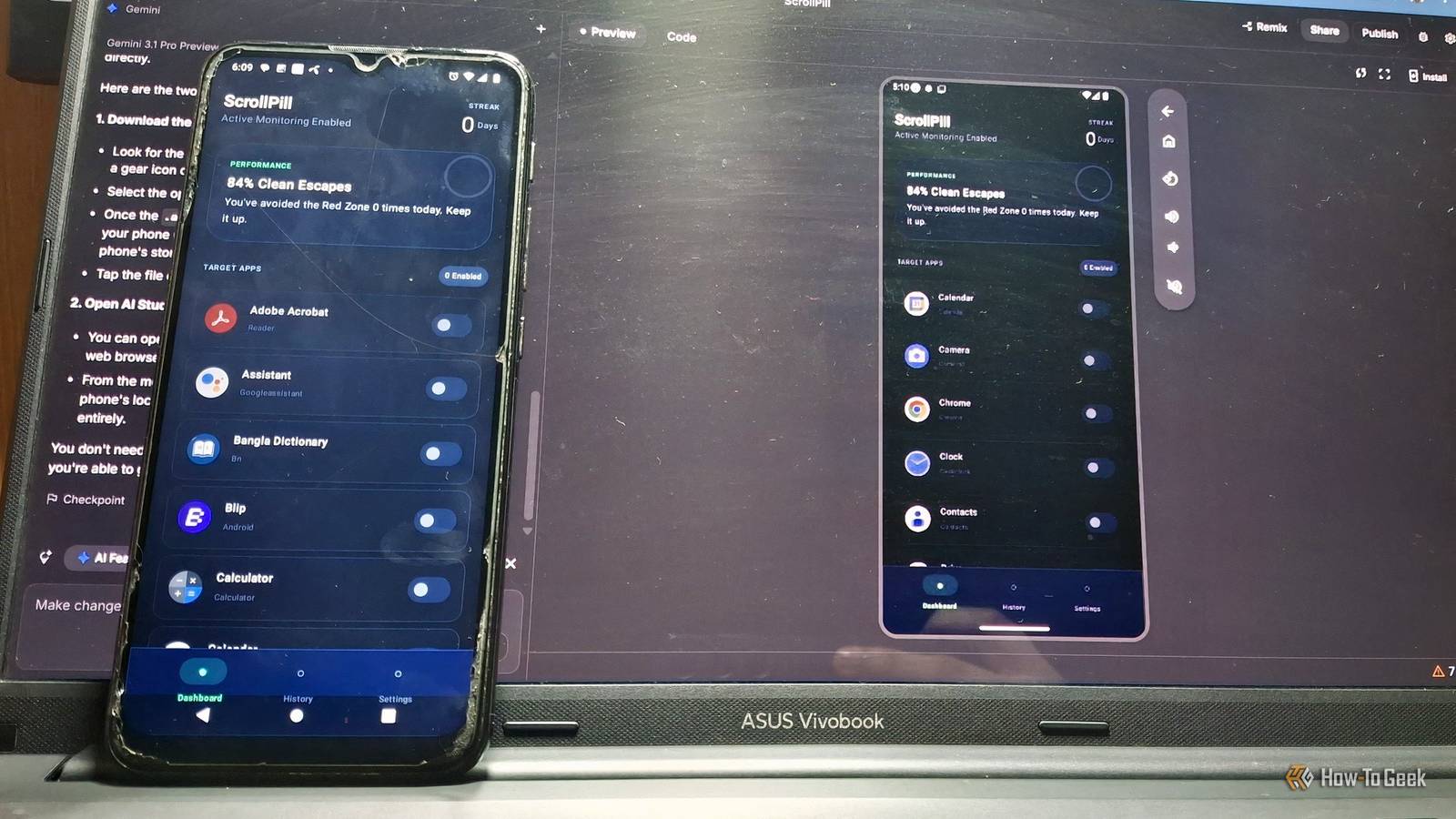
After quite some time, AI Studio finished writing all the necessary code. It was then building the app. After some time, I was presented with the first version of my app in the Preview section. The app was running in an emulator.
The first thing I did was check everything in the app UI to see if it implemented everything I asked it to. There’s a minimal statistic at the top that shows how many times you went to the danger zone that day.
After that, you see the list of apps for which you want to set up ScrollPill. At the bottom, you have two sliders to set your time threshold for the warning zone and danger zone.
Besides the Preview section, you have the Code section, where you can view the full project structure, the files, and the code. You can modify the code yourself to make and save changes.

Of course, that’s not a concern for a vibe coder. So, if you want to keep developing the app, you can enter more prompts for fixing bugs, small tweaks, or even implementing new features. You can even view the changes it made in a Git style diff viewer, in case you’re curious. After each iteration, it summarizes what it has done.
One thing I also liked is that Gemini itself suggests new features to you after analyzing your projects. Sometimes, you may miss something while working on a project. For example, Gemini suggested adding a weekly analytics system to the app, which never crossed my mind.

Now, that’s all about the building phase. It’s now time to try out the app. I chose YouTube for testing. After opening YouTube, I saw the green pill-shaped widget floating on top. It was a countdown timer with a small text showing the zone you were in.

When the safe zone threshold was exceeded, the pill became yellow and then red when it reached the warning zone, just as expected.

Google AI Studio
Google AI Studio is the fastest way to start building with Gemini, the company’s next-generation family of multimodal generative AI models.
Small tweaks and improvements
During my usage, I found some issues that I fixed using more prompts. The first thing was the size of the floating pill itself. It was too wide. So I asked Gemini to make the zone info collapsible. It made the zone section collapsible by pressing on the pill. On a second press, you can expand it.
The next thing I thought of was adding a bit more powerful nudge than just changing the color of the pill. So, I asked it to add pop-up alerts that would display a message. Not only would this disrupt your scrolling, but it would also remind you that you need to stop.
The user can exit the app right from that pop-up notification. Other than that, I also did some bug fixes. For example, the red zone pop-up alert wasn’t working initially. There was also a UI bug in the countdown timer. I prompted Gemini to fix both problems, and it did it successfully.
Installing the app on my phone
Not so straightforward but still easy

The development part was quite straightforward. Now it’s time to install it on a real device and see it in action. In the top right corner, there’s an Install button. Pressing it opens a panel with instructions to install it on your mobile device. Basically, you need to enable USB debugging, connect your phone to the Desktop using USB, and install the app.
Honestly, this is where things weren’t as simple. However, I’m partially to blame for that. I was constantly hitting a USB interface block issue. AI Studio told me that either Android Studio or adb wasrunning on my system. However, to my knowledge, I had none. I even ran the adb command to confirm, and there was no adb.

After some back and forth, I opened the Task Manager and finally found the culprit: an adb process running in the background. After ending that task, the app installed on my phone smoothly. I now have the app I built using only a few prompts installed on my phone.
Testing on a real device brought some more issues in front of me regarding the app that I totally missed in the web emulator. So, this was good for any final testing before I went to release it. Speaking of releasing, Google AI Studio also allows you to connect your GitHub and Play Console accounts for directly publishing your app, which is neat.
The whole experience
It’s never been easier

Within an hour or so, I had a working prototype of a mobile app fully built, packaged, run, and installed on my phone. From the comfort of my web browser. Built in Kotlin, which is the go-to language for Android apps. Moreover, I had zero thinking to do.
The reason I’m highlighting this so much is because, unlike other AI tools like ChatGPT and Claude, you don’t just end up with the code for the app. You get the whole bundle. Sure, from my usage, there were still some bugs and UX problems here and there. But fixing them only needed a few more prompts. That’s why I’m quite hopeful about Google AI Studio and what it’s going to offer in the future.
Android app development within reach
Before this Google AI Studio revamp, building an ambient, system-level utility like ScrollPill would have stayed on my wish list forever. But now? The gap between having an idea and holding it in your hand has completely narrowed. Ultimately, ScrollPill works, and it’s a tool I’m genuinely using to keep my screen time in check.